


How Does a Pet Hologram Box Work?
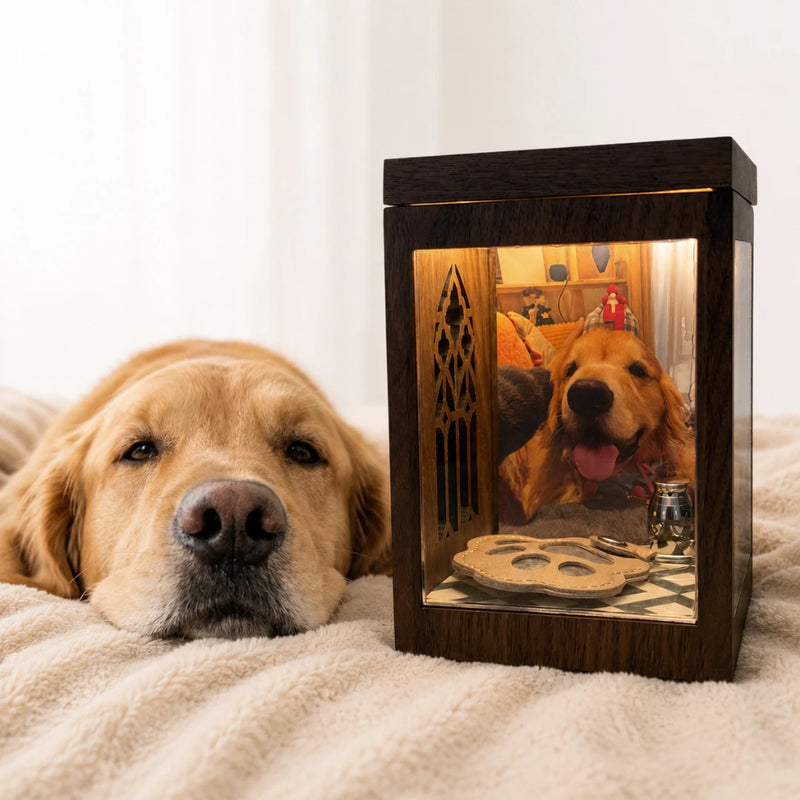
See How Your Pet Comes to Life in the Box
1. Smartphone-Powered
The image comes from your smartphone screen. The box does not contain a built-in display.
2. Custom-Made for Your Pet
Your hologram video is created from the pet photo you upload.
3. Touch-Triggered Interactions
Tap the on-screen interaction zones to trigger selected pet actions.

What Creates the Floating Pet Image?
1. Your Smartphone Provides the Image
The custom pet video plays from your phone screen while the phone rests on top of the box.
2. The Clear Plate Reflects the Video
A transparent plate positioned inside the box reflects the image toward the viewer.
3. The Dark Background Creates Separation
The black background hides the edges of the video, helping the pet appear separated from the phone screen and positioned inside the box.
*The box creates a front-facing floating visual effect. It is not a 360-degree hologram, projector, or device with a built-in screen.
What You Need to Use Your Pet Hologram Box

A Compatible Smartphone
The phone provides the image and touch controls.

Your Pawever Activation Card
Use the code included with your order to activate your custom pet.
Pawever App or Web Version
Access your hologram through the Pawever app or app.pawever.shop
DOWNLOAD OUR APP
Start Creating Your Pet Hologram
*Use the same Pawever account when activating Basic and Premium access. Do not activate the two codes under different accounts.


App or Web — Which Should I Use?
| Feature | App | Web |
| Installation Required | Yes | No |
| Requires Pawever Account | Yes | Yes |
| Supports Touch Interaction | Yes | Yes |
| Supports Activation Code | Yes | Yes |
| Best For Daily Repeated Use | More Convenient | Available |
| Cache Management | Clear Cache Inside App | Clear Through Browser or Web Page Settings |
How to Set Up Your Pet Hologram

Step 1: Set Up the Box
Insert the clear reflective plate securely inside the box at the correct angle.

Step 2: Activate Your Pet
Sign in through the Pawever app or web version, then scan or enter the activation code included with your order.

Step 3: Start the Hologram
Tap Start Hologram, then place your smartphone on top of the box with the screen aligned toward the reflective plate.
Your pet will begin playing natural movements. Tap the three on-screen interaction zones to trigger available actions.
Watch, Touch, and Interact With Your Pet
How Pet Interactions Work

What Are Idle Actions?
Idle actions play automatically while the hologram is running. Includes:
- Sitting
- Looking Around
- Licking a Paw
How Do the Three Touch Areas Work?
There are three interactive areas on the phone screen. Tapping each area triggers its corresponding type of interaction:
- Petting
- Feeding
- Paw interaction
Basic vs Premium Hologram?
Basic Hologram
- 3 idle animations;
- 3 touchscreen interactions;
- 6 animations in total.
Premium Hologram
- Adds 9 interactive animations to the Basic set;
- 15 animations in total.
Are the interactive actions random?
Each touch area is connected to a type of interaction. Basic actions are linked to their corresponding touch areas, while Premium actions may rotate or play randomly within the available interaction category.

How to Get the Best Hologram Effect
Increase Your Phone Brightness
Set the phone screen close to maximum brightness before placing it on the box.
Use Controlled Room Lighting
The floating effect appears clearer in dimmer or controlled lighting.
Clean the Reflective Plate
Dust, fingerprints, and scratches can reduce clarity.
Use Full-Screen Playback
Browser bars, notifications, and incorrect screen orientation may interrupt the projection.

Daytime vs Nighttime
Daytime:
- The image remains visible in normal indoor lighting.
- Strong sunlight may reduce contrast.
- Higher phone brightness may be required.
- Avoid direct sunlight on the reflective plate.
Nighttime or Lower Light:
- The black background blends more naturally.
- The edges of the video become less noticeable.
- The floating visual effect usually appears clearer and more pronounced.
Troubleshooting
Common Setup Problems and Quick Fixes

Why can’t I see the hologram clearly?
Check the following:
- Make sure your phone is placed screen-side down with nothing covering the screen.
- Confirm that Start Hologram is running in full-screen mode and your pet is visible on the phone screen.
- Increase your phone brightness.
- Make sure the reflective plate is inserted correctly and facing the right direction.
- Reduce strong room lighting or direct sunlight.
Why won’t the hologram video start?
First, check your internet connection. Then clear the Pawever app or web cache, sign in again, and confirm that your hologram activation card has been activated on the account.
Return to Start Hologram and try again.
Why can I only access the Basic actions?
Confirm that you have purchased Premium access and activated the Premium card.
Basic and Premium must be activated using the same Pawever account. After activation, clear the cache, sign in again, and restart the hologram.
Why does an action stop early or restart?
Clear the local cache, sign in again, and restart the hologram. If an action still stops early or repeatedly plays only the first few seconds, contact service@pawever.shop with your account email and a short screen recording of the issue.
What should I do if the wrong pet or incorrect actions appear?
Take screenshots or a short screen recording showing the incorrect pet or action.
Email them to service@pawever.shop together with your registered account email and order number. Our team will manually check the pet and action access linked to your account.
What should I do if the app or web page is not displaying correctly?
When possible, switch from the web version to the Pawever app. You can also:
- Clear the app or web cache.
- Turn off screen rotation lock.
- Disable ad blockers or content restrictions.
- Reload the page or restart the app.
- Sign in again and return to Start Hologram.
How do I clear the Pawever cache?
- Open the Pawever menu.
- Select Clear Cache.
- Sign in again.
- Return to Start Hologram.
- Test the video and actions again.
Your Pet, Account, and Hologram Access
Can I replace the pet linked to my activation code?
No. Each activation code is created for one customized pet and cannot be reused to create unlimited pets.
To create a hologram for a different pet, you will need to purchase an additional activation code.
Can I add more than one pet to my account?
Yes. Each customized pet requires its own activation access.
You can purchase an additional Basic or Premium activation code and activate it using your existing Pawever account.
One hologram box can display different pets, but only one pet is shown at a time. Select the pet you want to view from your account before starting the hologram.
Is there a monthly subscription?
No. There is no required monthly subscription or ongoing membership fee for the custom pet video and action access included with your purchase.
Additional pets and optional Premium upgrades are purchased separately.
How are my pet photos and account information used?
The full-body pet photo you upload is used to create your customized pet image and hologram videos. It is not used for advertising or AI model training.
Only authorized team members and service providers involved in creating, delivering, or supporting your customized hologram may access the required information.
Can I request the deletion of my pet photos or account data?
Yes. You can request deletion by emailing service@pawever.shop from the email address connected to your Pawever account. Please include your order number or registered account email so our team can locate the correct information.
For more information, please read our Privacy Policy.
Ready to Create Your Pet Hologram?
Choose the box that fits your home, gifting needs, and preferred interaction experience.


Already Have a Pawever Box?
Visit the complete setup guide or contact our support team.